Posts

How to change OS Edition using commands

How to change OS Edition using commands 1) Open power shell 2) Run command " DISM /online /Get-CurrentEdition"     It will give you current edition of the server     (DISM is deployment image servicing and management tool) 3) Run command " DISM /online /Set-Edition:ServerDatacenter /ProductKey:XXXXX-XXXXX-XXXXX-XXXXX-XXXXX /AcceptEula ," Enter edition you want to upgrade (I have added datacenter in command) and product key It will install this product key and change edition to datacenter 4) Run command " DISM /online /Get-CurrentEdition" again to verify edition of OS
How to resolve RDP issue after renaming terminal server windows 2012 R2

How to resolve RDP issue after renaming terminal server windows 2012 R2 Problem: After renaming windows 2012 R2 server having terminal server role RDP stops working Resolution: Reinstall Remote desktop services on server to resolve the issue.

How to check deleted objects in AD

How to check deleted objects in AD 1) Type LDP.exe on command prompt and press enter      It will open LDP console 2) Click on connection and select connect 3) enter Domain controller name in server and select port 389.click OK 4) Click connection and select BIND 5) Enter username and password 6) Click on Options and select controls 7) In controls select "return deleted objects" from drop down of "load predefined" option 8) Enter value "1.2.840.113556.1.4.417" in object identifier, select server, check critical and add description. 9) Click on check in and press OK 10)  Click on view and select Tree 11) Enter Base DN "cn=deleted Objects,dc=mapoinfotech,dc=com" and click OK 12) It will show all deleted objects tree view in left pane

How to resolve system state backup failure issue of 2008 server

How to resolve system state backup failure issue of 2008 server ISSUE: System state backup of windows 2008 or 2008 R2 server fails. CAUSE: if any service on widows 2008 server has wrong path then it fails system state backup. SOLUTION:  1) Go to start and RUN, enter MSINFO32.EXE 2) It will open system information window 3)  Open SOFTWARE ENVIRONMENT --> SERVICES 4) Check all services and find out service having "/" or space in the path of service. 5) Note down the service name and service display name having issue in Path 6) Open registry editor (regedit.exe) and go to HKEY_LOCAL_MACHINE\SYSTEM\CurrentControlSet\services Find out service by its service name noted in step 5 7) Rectify the image path of service to the correct path (change / to \ or remove space) 8) Restart server after making changes 9) Test system state backup

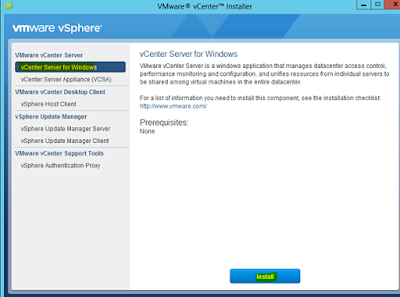
Vcenter 6.0 Installation

Image
                                                                         This post describes how to install vCenter 6.0 on Windows vCenter Server requires a 64-bit operating system such as Windows 2008 R2, Windows Server 2012 and Windows Server 2012 R2.  Please do check the hardware and software requirements for the vCenter installation. Step 1: Mount the vSphere 6.0  installation media. The installation wizard appears. In the left pane select “ vCenter Server for Windows ”  and click on Install . Step 2: Click Next to proceed Step 3: Accept the License agreement and click Next to proceed Step 4: Select the deployment model. Note : Refer h ttps://kb.vmware.com/selfservice/search.docmd=disp...

How To Recover Crashed Windows Server On AWS

How To Recover Crashed Windows Server On AWS         SYMPTOMS:  Windows server on AWS does not come up and it fails on one check out of TWO system checks.   CAUSE: changes in windows settings or firewall which is causing system not to come on network resulting in failing system checks   RESOLUTION:   1) Launch new temoparary isntance in same availiability zone. 2) Detach root volume from affetced INSTANCE 3) Attach volume to new instance and bring it online from disk manangement of temporary server 4) Open regedit.exe on temporary server and click on HKEY_LOCAL_MACHINE 5) G o to File menu and select Load Hive and browse the file on the attached volume <letter>:\Windows\System32\config\SYSTEM 6) Set Recover as key name 7) Once loaded, Open the new imported system hive 'HKEY_LOCAL_MACHINE > Recover' 8) Click on the 'HKEY_LOCAL_MACHINE > Recover> Select' , inside you will see 4 keys - ...

How to resolve Black login screen on windows 2003 server

How to resolve Black login screen on windows 2003 server Symptom: When you RDP windows 2003 server it shows black screen Cause: This issue occurs if all values under registry key " HKEY_USERS\.Default\Control Panel\Colors" are set to "0" Resolution: 1) Login to another windows 2003 server which is working fine 2) Click Start , point to Run , type regedit in the Open box, and then click OK 3)  Locate the following registry subkey: HKEY_USERS\.Default\Control Panel\Colors 4) Right-click the Colors registry subkey, and then click Export 5) In the File name box, type a name for the file   6) Copy this file to server where you have issue 7) Click Start , point to Run , type regedit in the Open box, and then click OK 8) On the File menu, click Import . 9) Double-click the .reg file that you want to import 10) Quit Registry Editor, and then restart the computer Note: Please do not import/export registry keys at the root level